Git & GitHub Essentials for DevOps: Part 1

High functional, goal-oriented, and result driven Analyst with 2+ years of progressive experience. contributing to organizational success through high-level strategy and the implementation of excellence. Strong track record of inspiring effective cross-functional collaboration and innovative problem solving skills.
Passionate about exploring the ever-evolving world of DevOps technology. On a journey to unlock the secrets of seamless development, continuous integration, and deployment.
Committed to continuous improvement and lifelong learning.
✍️ Introduction:
Do you ever wonder how you are gonna use git to store and share your code or project with other developers or people in the software industry? This can be done with the help of a repository. A repository generally contains information such as the project's version history, branches, and configurations. In this blog, we'll be focusing on local and remote repositories and the branches.
🌴 Branches in Git:
A branch in Git is a repository version that merely deviates from the active project. A git repository may contain multiple branches. With the help of branches, we can work on several project functionalities at once, i.e. It allows developers to work on multiple features or fixes concurrently without interfering with one another's work and without affecting the main codebase as well. When we create a new branch, all of the files from the base branch are copied over, and the new branch's files also contain the history of the modifications that have been made.
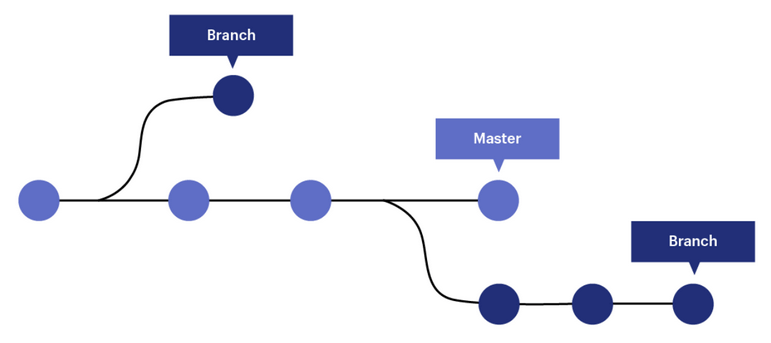
Assume our repository has a main branch that contains the source code and all current updates. If we need to add a new feature, we can start a new branch from the main branch. Keep in mind that development in the main branch might continue even after you create a new branch. If we need to add a critical feature to our project, we can build a new branch (bottom branch) from the main branch and keep working on the main branch.
Take note that we now have two different branches originating from the main branch. Once the work in the branches is finished, we may merge it back into the main.
The purpose of the branches is to let the developers work on both of them in parallel, but it also keeps the master/main branch free from questionable code.
🌱 Understanding the main and master branch:
The master branch and the main branch are not very different from one another. Git's main branch was once known as the master branch, but a shift in practice has resulted in its new name, the main branch.
With the following command, you can modify the name of the main branch in your local repository: branch -m master main in git. This gives the name of the major branch as it is now known, followed by its new name.

📩 New repository on GitHub:
On GitHub, creating a new repository is quite simple.
Go to GitHub.com and sign into your account. Next, select "New" from the panel on the left.

Add information about your repository, including a brief description and the name you would like to give it. Next, select "Create Repository" from the menu.

After creating a new GitHub repository, you will be taken to the following page. The methods outlined below show how to connect your local repository to the remote repository you just created.

📖 Local and remote repository:
A local repository is located on the developer's machine i.e. on your computer. A remote repository is hosted on a server or a cloud-based platform like GitHub.
Teams share updates from their local folders using remote repositories. You don't need the internet to save changes once you've finished making them in your local repository. These changes are private and can only be viewed by you. To share the changes, send them from your local repository to the remote repository.
📎 Connecting Local repository to remote repository:
The steps below can be used to establish a new local repository and link it to the remote repository on GitHub:
git init: this command will set up a fresh local Git repository.
echo "# DevOps repository" > README.md: Here, we create a file that can be pushed to the remote repository.
git status: This command allows us to see any updated files as well as newly added files to the local repository. As we can see in the sample below, "README.md" now displays as a new file after being added.
git commit: Following the addition of the changes, we can commit the changes and provide a commit message outlining the specific changes. A snapshot of every update is taken when we commit our changes.
git branch -M main: Since "main" is the primary branch in the remote repository, we now modify its name to that of the primary branch.
git remote add origin: To enable us to push the changes, we put the remote repository URL here.
git remote -v: The command "git remote -v" allows us to see the remote repository that is linked to our local repository.
git push origin main: We can publish modifications to the remote repository so that anybody can see our updates when they have been committed.

Refresh the GitHub page after pushing the modifications. The files you pushed are now visible in the remote repository, as you can see.
📌 Conclusion:
Finally, Git and GitHub are valuable tools for DevOps engineers because they enable collaboration and version control. Understanding and integrating branches, and local and remote repositories allows for smooth code exchange and management. It's essential to get hands-on practice with such tools to contribute to the software as a team and as an individual. It provides an organized method to collaborate in both local and remote repositories.


