🐳Swin through Docker

High functional, goal-oriented, and result driven Analyst with 2+ years of progressive experience. contributing to organizational success through high-level strategy and the implementation of excellence. Strong track record of inspiring effective cross-functional collaboration and innovative problem solving skills.
Passionate about exploring the ever-evolving world of DevOps technology. On a journey to unlock the secrets of seamless development, continuous integration, and deployment.
Committed to continuous improvement and lifelong learning.
🌊Let's go Swimming!
In this blog, we'll be exploring or you can say swimming through the concepts of Docker, why we use Docker, and the basic terminology of Docker. In the next blog, we'll cover more about running the container and creating the one and all.
✍Docker!?
Let's understand why we use docker. When we build software, it frequently requires specific tools and settings to function effectively. These tools and settings vary based on the machine you're using, such as MAC, OS, or Linux, and configuring them each time might be time-consuming.

Docker bundles everything of an SW required i.e. its tools, libraries, and settings—into a "container." This container is portable and can be run on any computer without the need for re-installation. In a nutshell, no matter where you go, you have everything you need to complete your task quickly and with no hassle. Oh, Wait! Yes, you heard it right. With Docker, you might not need to worry about the versions of different tools, libraries, etc., that you need to install to run specific applications. Docker handles it for you.
⛜ Road to Architect of Docker:
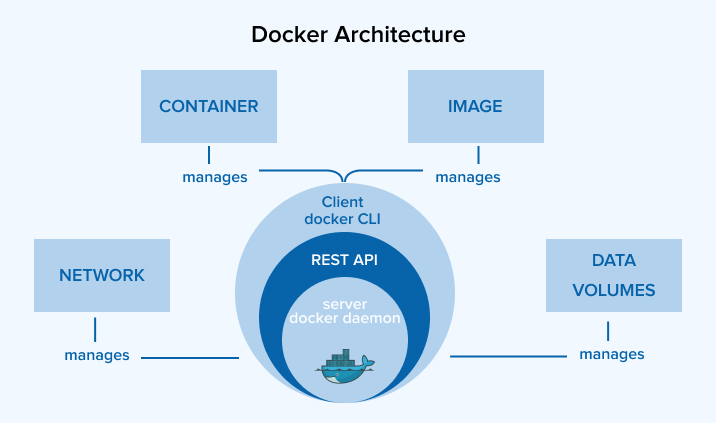
Under the hood, Docker uses a client-server architecture to get things done. The client is your interface for issuing commands to the Docker daemon.
The Docker client sends commands to the Docker daemon using a REST API. This API can communicate over UNIX sockets or a network. The daemon that runs in the background then is where all the heavy lifting happens i.e. to manage containers, images, data volumes, and network settings to ensure everything runs smoothly.
📦Overview of docker container:
The diagram shows the process of creating and running a Docker container, broken down into three main steps
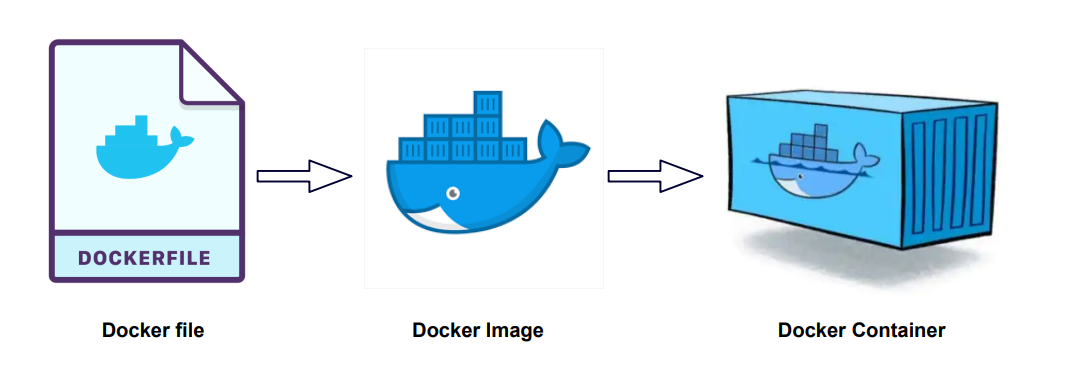
📝Docker File: Simple text file that contains a series of instructions on how to build a Docker image. File which included the details of creating the environment and applications you need to run the SW like python libraries, UNIX env..etc.
📜Docker Image: A Docker image is created when we run the Dockerfile. The code, runtime, libraries, and dependencies required to run your application are all included in this image.
📦Docker Container: Next, a Docker container is created using the Docker image. An executable instance of an image is called a container. Everything from the image is still there, but it is now operational.

The ability to specify network ports that a container will reply to—which may be the same ports that your application uses—ensures the security of the container by preventing random open ports from being exploited.
📚Docker Hub:
Docker Hub, like GitHub, is a site where you can find official and user-created Docker images. There are numerous official Docker images available, including Linux, MongoDB, Express, and many others, from which you can construct your apps.

You can quickly pull ready-to-use images for development, testing, or production. and can collaborate via Sharing images on the broader Docker community by creating your account on the docker hub and making your Docker images available for others to utilize.
📍Handy commands to get started with Docker:
let's move to commands to see the docker implementation and execution in real-time
⚡docker run: To create or to start the new container by specifying the image. In the below example, as we didn't have the hello-world image in the local machine the image has been pulled from the docker hub:


⚡docker images: shows all the images present and pulled in the past with all the necessary information like size, creation date..etc.

⚡docker container ls: This command shows the currently running containers. To see all the containers use docker container ls -a.

⚡docker image ls: This command shows all the docker images available locally on the machine.

🔛To the new beginning:
We utilize Docker to ensure that our applications work quickly and reliably on all computers across the globe, saving time and reducing setup and compatibility issues.
This is only the tip of the iceberg; there is so much more to discover about Docker! We have Docker volumes, Docker networking, Docker-compose, and much more! I can't wait to discuss these subjects in future blog posts. Keep studying and practicing - it will be an exciting trip!


